Separate from Krisp. Importing only fills your lesson notes: it never writes a report and never uses a generation.
Your device token (shown only once)
Copy it now and paste it into Scout. It cannot be shown again, and anyone who has it can add lessons to your inbox. If you lose it, replace it with a new one.
Connected Scout automatically adds finished transcripts to empty lesson notes. If your notes or report already have content, nothing is overwritten: the lesson waits in Pending transcripts, in a separate Scout section, until you import it. No report is generated automatically.
Disconnect revokes the device token on our server. Clearing the token inside the Scout desktop app only forgets it on that computer and does not revoke it.
Pending Scout lessons: 0
Owner tools
Teacher feedback
Ratings, bug reports and ideas from teachers, linked to the report each one is about.
Create a 30-day Pro access code for someone who paid you personally.
Reset a device binding
If a customer's 30-day key was activated on a browser they no longer use (switched devices, cleared cookies), paste their key here to free it up for the new browser.
Link a recovery email to a paid key
If a paying customer's recovery link keeps opening a Free account, paste their paid key and their email. Their email will then sign in to that paid key. Nothing else about the key changes.
September 11 inventory replacement
Paste the 20 old codes below. Preview first. Only expired manual codes issued September 11 are retired; renewed and active customer accounts are protected. Your master key is never changed.
Generate fresh activation-based codes
Create 20 replacement keys. The 30-day clock starts on each customer's first activation, not today. Copy and keep the keys somewhere private.
i
Two platform-specific report fields; length is controlled by Beida.
Paste the lesson notes, choose a protocol, pick a rating, then generate.
0 words · 0 characters
Krisp
Not configured
Connect Krisp to import your lesson notes.
Import lesson notes automatically
Disarmed · turn on when you are ready.
Krisp disarmed
Connection setup ⌄
Connect Krisp once
Copy your connection link
Set up the webhook in Krisp
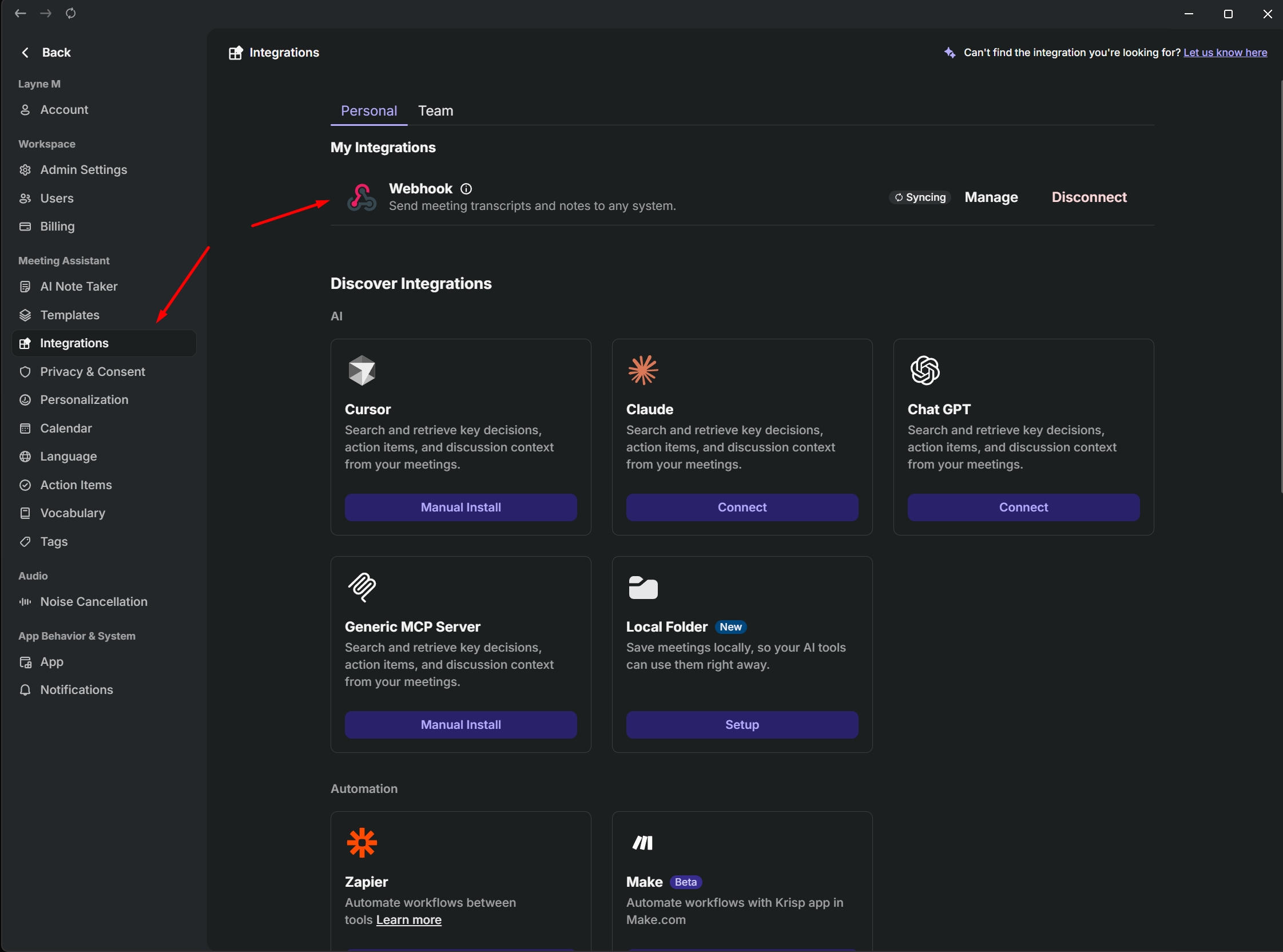
Open Krisp → Settings → Integrations → Webhook. Name it Pathfinder and paste the entire connection link.
Under Trigger Events, select Transcript created only, then save.
Return here and press ARM KRISP
Your first lesson delivery will confirm the connection.
When armed, new Krisp lesson notes appear here automatically. It stays armed until you press DISARM KRISP.
Advanced
In Krisp: Settings → Integrations → Webhook.
Replacing the link disables the old one. Pending imports are kept.
Unclaimed Krisp imports:1 New Krisp transcript
Your next report starts here
Share feedback
Report quality
Please leave out student names and private details.
Reports are copied to your clipboard automatically the moment they're generated. Draft fields are saved in this browser only — generated reports are never stored.
Pathfinder · Quick start
Your first report in three steps
From lesson notes to feedback, ready to review and share.
1
Choose your report style
Start with Classic. Explore other styles whenever you’re ready.
2
Add your lesson notes
Paste your notes or write a few sentences about the lesson.
3
Create your report
Add the student’s name and rating, then generate. Review before sharing.
Explore the full guide
Protocol cheat sheet
Classic
Full, balanced student feedback with vocabulary, grammar, homework, and stars.
Sugarcoat
Warmer, softer feedback for parents who prefer extra encouragement.
Fairy
A pink Sugarcoat subprotocol for younger students and more magical reports.
Blitz
Fast, short feedback when you need something clean right now.
Beida
Learning-content style output for platform-ready summaries.
OF / Preply
Trial lesson or private-tutor follow-up formats.
Access and payment
Free
5 Classic reports each month. Start with an email inside Access.
Pro
Unlimited reports and every protocol. Checkout supports card or PayPal when available.
Manage billing
Pro members can update payment details, view invoices, cancel or resume from Access.
Lost key
Open Access and use the same email from checkout to find it again.
Connecting Krisp (optional)
1
Copy your connection link
Open Krisp integration at the top of Pathfinder. Under Connection setup, press Copy connection link.
2
Open Settings in Krisp
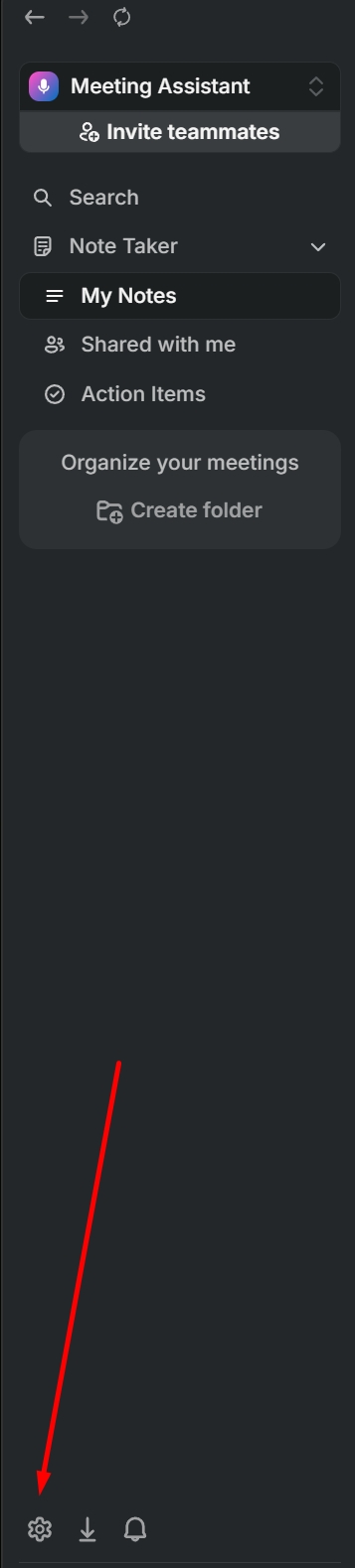
Click the small gear in the bottom-left corner.
Open the Krisp app, then click the gear shown by the red arrow. This opens Settings.
Name the connection Pathfinder. Paste the whole link you copied into the Webhook URL box. Under Trigger Events, select Transcript created only, then save. Leave the other boxes unticked. Keep your connection link private, like a password.
5
Return to Pathfinder and press ARM KRISP
Finish a lesson in Krisp and wait for its transcript to be ready. The first received transcript confirms the connection. Krisp stays armed for later lessons until you press DISARM KRISP. Copying the link alone does not confirm the connection.
Starting fresh? Use New Student or click the Classbuster logo to reset the page. If something looks wrong, regenerate once or change protocol.
Pathfinder · Your workspace
Choose how to continue
Start free, upgrade to Pro, or securely restore your access.